4.2.1 Interactive Mode (continued)
4.2.1.1 Erase Data from a Device
When you select a physical device (for example, Fixed Disk 0), the erase command processes partitions no matter what condition they are in. Everything is destroyed.
If you want to erase data on selected logical drives, follow the steps in 4.2.3 Erase or Wipe Logical Drives (Partitions).
To erase the data:
- Be certain that the drive you are pointing to is the one that you want to erase. All data will be permanently erased with no chance for recovery.
- When you have selected the device to erase, select the checkbox for this hard drive. You may select more than one physical disk for the erase action. In this case these disks will be erased simultaneously. To permanently erase all data on the selected disk(s), press F10 or click Kill on the toolbar. The Kill dialog box appears.
Kill dialog box
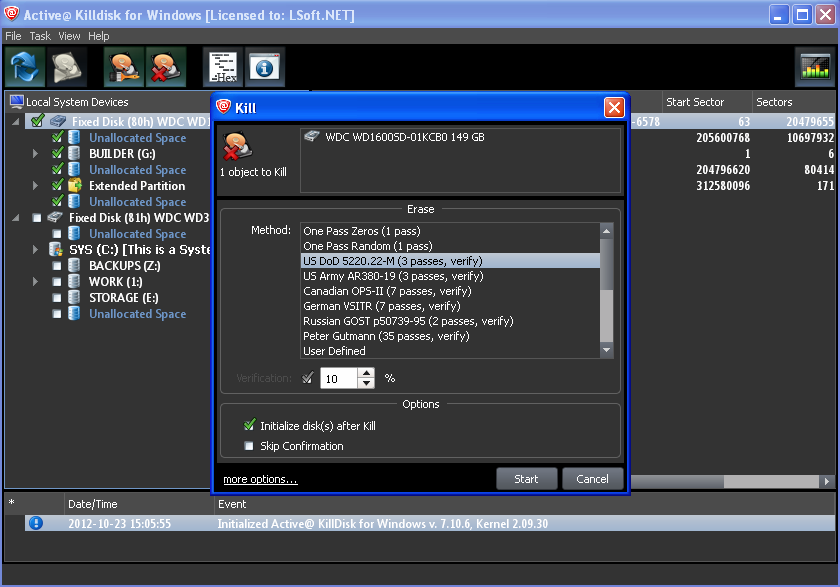
- Select an erase method from the list. Erase methods are described in Chapter 5 Erase/Wipe Parameters in this guide.
- Set other parameters for erasing. To specify log and certificate file location, e-mail notifications and other settings, click the more options link at the bottom. The settings box will then appear.:
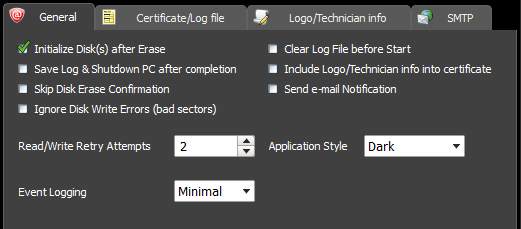
For information on these settings, see Chapter 5 in this guide.
- Click Start. If the Skip Disk Erase Confirmation check box is clear, the Confirm Action dialog box appears.
Confirm Action
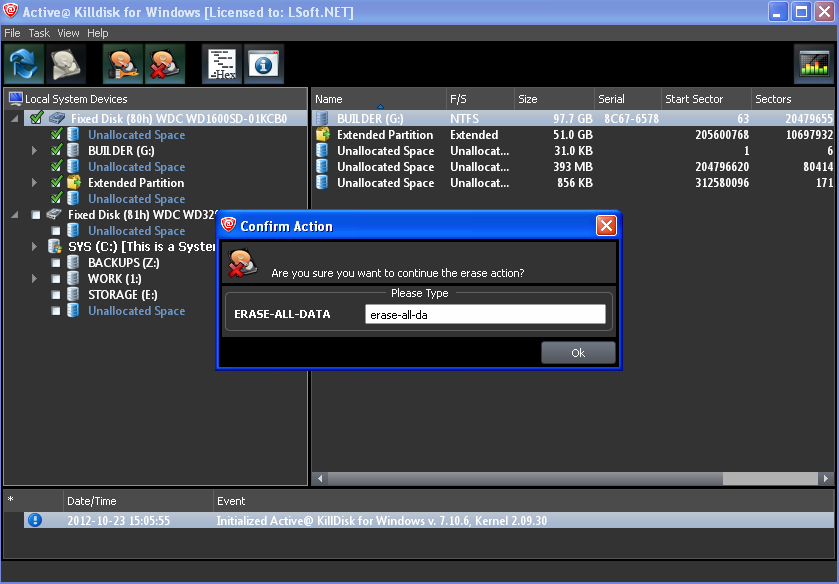
- This is the final step before removing data from the selected drive forever. Type ERASE-ALL-DATA in the text box and press ENTER or click YES. The Progress bar appears.
- To stop the process at any time, click the Stop button for the particular disk. Click theStop All button at top left corner to cancel erasing for all disks. Note,that data that has already been erased will not be recoverable.
Disk Erasing in Progress
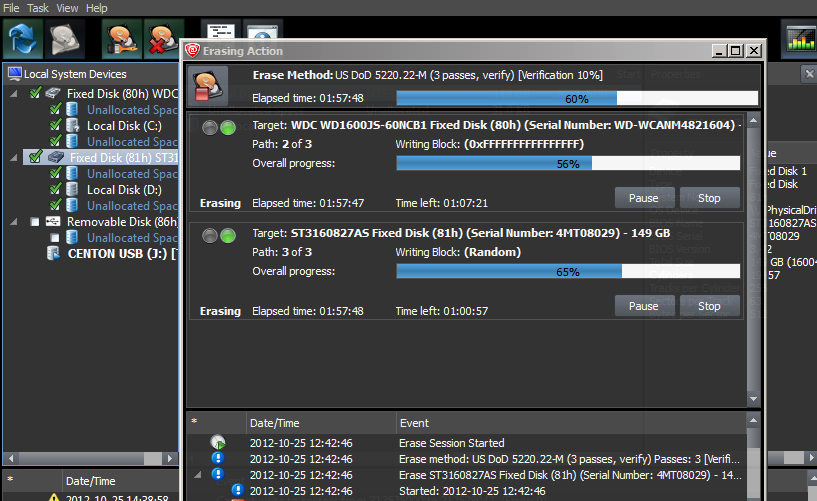
- There is nothing more to do until the end of the disk erasing process. The application will operate on its own.
If there are any errors, for example due to bad clusters, they will be reported on the Interactive screen and in the log. If such a message appears, you may cancel the operation (click Abort), or you may continue erasing data (click Ignore or Ignore All).
Because of the BIOS restrictions of some manufacturers, a hard disk device that is larger than 300 MB must have an MBR (Master Boot Record) in sector zero. If you erase sector zero and fill it with zeros or random characters, you might find that you cannot use the hard drive after erasing the data. It is for this reason KillDisk creates an empty partition table and writes a typical MBR in sector zero (in case the Initialize disk(s) after Erase option is selected).
|
This document is available in PDF format,
which requires Adobe® Acrobat® Reader
(Free download):
|
| 
