This section describes how to use the DOS Interactive screens.
The steps for erasing data and wiping data are similar. Follow steps 1 through 13 and then click the link to complete either the erasing process or the wiping process.
If you are booting from a floppy drive, check that the floppy drive has boot priority in the BIOS settings of your computer. If you are booting from a CD, check that the CD drive has boot priority in the BIOS settings of your computer.
Here are the steps for interactive operation:
1. With the PC power off, insert either the Active@ KILLDISK bootable floppy disk into drive A: or the Active@ KILLDISK bootable CD into your CD-ROM drive.
2. Start the PC by turning on the power. The screen will display the Microsoft DOS prompt.
3. At the DOS prompt, run Active@ KILLDISK for Hard Drives by typing: KILLDISK.EXE
The Detected Physical Devices screen appears.
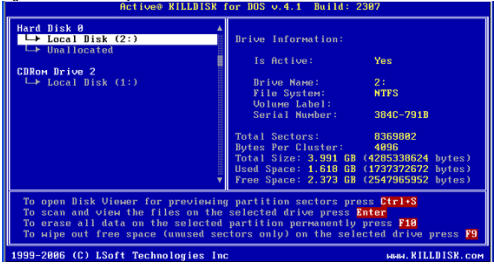
All system physical devices and logical partitions are displayed in a list.
4. Change the position of the cursor in the list using the keyboard [Down] and
[Up] arrow keys. A list of commands is displayed below the device list.
Hard drive devices are numbered by the system BIOS. A system with a
single hard drive shows as number 0. Subsequent hard drive devices are
numbered consecutively. For example the second device will be shown as
Hard Disk 1.
Select a device and read the detailed information about the device in the
right pane. Below the device, select a logical partition. The information in
the right pane changes. As well, the list of commands changes.
5. Be certain that the drive you are pointing to is the one that you want to erase
or the one you want to wipe. If you choose to erase, all data will be
permanently erased with no chance for recovery.
To preview the sectors in a device, press [Ctrl + S]. The Preview Sector
screen appears.
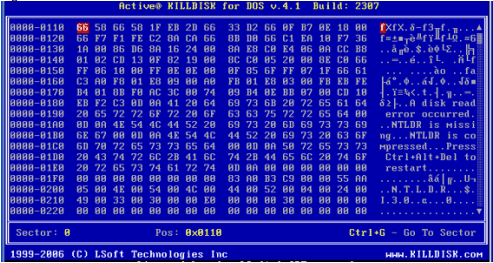
6. To scroll up and down, use the keyboard arrow keys, [Page Up], [Page Down], [Home] and [End] navigation keys.
7. To jump to a specific sector, press [Ctrl + G].
8. When you are satisfied with the identification of the device, press [Esc] to exit this screen.
9. To preview the files in a logical partition, select the partition and press [Enter]. KillDisk scans the MFT records for the partition. The Files Preview screen appears.
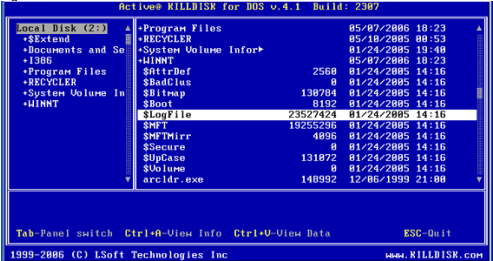
Press [Tab] to switch to the right panel.
11.To see items in the list, use [Page Down], [Page Up] or the up or down arrow keys.
12.To open a folder, move the cursor to the folder and press [Enter]. KillDisk
scans the MFT records for this folder. The files in the folder appear in the
right panel.
Existing file names and folder names appear in white colour and
deleted file names and folder names appear in gray colour. If you are wiping
data from unoccupied areas, the gray-coloured file names are removed after
the wiping process completes. You may use Files Preview to inspect the
work done by the wiping process. After wiping, the data in these areas and
the place these files hold in the root records or MFT records are gone.
13. Press [Esc] to close this screen and return to Detected Physical Devices.
|
This document is available in PDF format,
|

